Customization
Overview
Customize the Optave Assistant for Salesforce to meet your business requirements and seamlessly integrate with your Salesforce implementation.
1. User Interface Customization
Customize the appearance to match your organization's branding using the Salesforce Lightning Design System (SLDS). You can adjust layouts, colors, typography, spacing, animations, and interactive behaviors.
A. Global UI Styles
- Modify CSS in component files to change colors, fonts, and layouts.
- Replace icons in Static Resources with your own branding elements.
B. UI Components
Main Components
- agentUI – The primary interface component. Customize its overall layout, visual design, and interactive behavior to enhance operator-customer interactions.
- settings – Configuration interface for controlling AI behavior. Modify language options, streaming settings, and UI elements to match your requirements.
Supporting Components
- lightningFooter – Footer component. Adjust its structure, styling, and content to align with your brand.
- loadingBar – Visual progress indicator. Customize animations and display to suit your application's style.
- feedback – User feedback module. Tailor forms, input fields, and visual cues for collecting feedback effectively.
- insights – Customer insights dashboard. Modify charts, data presentation, and real-time analytics visuals.
- sources – Interface for managing reference content. Customize filtering options and content display.
- translation – Real-time translation interface. Modify language detection settings and UI elements for improved clarity.
Modal Components
- sourceModal – Popup for displaying information sources. Adapt its layout and styling to improve readability.
- adjustModal – Modal for requesting UI adjustments or fine-tuning AI responses. Customize forms and interactive elements.
- elevateModal – Modal for reviewing and escalating AI-generated replies. Adjust controls and prompts for optimal usability.
2. Lightning Message Service Customization
Extend the Lightning Message Service channels in /force-app/main/default/messageChannels/ to facilitate communication between components:
- SettingsUpdateChannel
- Modify the message fields in SettingsUpdateChannel.messageChannel-meta.xml to add custom configuration options
- Create custom channel
- To create a new Lightning Message Service channel:
- Create a new file in
/force-app/main/default/messageChannels/with the nameYourChannelName.messageChannel-meta.xml - Use the following structure for your XML file:
<?xml version="1.0" encoding="UTF-8"?>
<LightningMessageChannel xmlns="http://soap.sforce.com/2006/04/metadata">
    <masterLabel>YourChannelLabel</masterLabel>
    <isExposed>true</isExposed>
    <description>Description of your channel's purpose</description>
    <lightningMessageFields>
        <fieldName>fieldName1</fieldName>
        <description>Description of this field</description>
    </lightningMessageFields>
    <lightningMessageFields>
        <fieldName>fieldName2</fieldName>
        <description>Description of this field</description>
    </lightningMessageFields>
</LightningMessageChannel> - Deploy this file to your org using VS Code or the CLI command:
sf project deploy start -d force-app/main/default/messageChannels/YourChannelName.messageChannel-meta.xml - Reference your channel in JavaScript components:
import YOUR_CHANNEL from '@salesforce/messageChannel/YourChannelName__c';
- Create a new file in
- To create a new Lightning Message Service channel:
3. Static Resources
Replace images, icons, and other visual assets with your custom versions. You can also add new libraries and external resources here since Salesforce does not support npm packages for external dependencies. Because of this limitation, updates to SDKs, libraries, or similar assets must be performed manually by uploading a new minified file.
4. Integration Extensions
Extend the assistant to connect with other Salesforce services or external systems:
- Custom API Connections: Refer to the
agentUI/helpers/optaveAssistant.jsfile for building custom connections with Salesforce's Conversation Toolkit API. - Lightning Message Service: Create new message channels for custom communication between components.
- Component Helpers: Extend existing helper JavaScript modules in the
lwccomponent folders. - Data Source Integration: Enhance the assistant to pull data from additional Salesforce objects or external sources.
5. Development Process
To implement these customizations:
- Connect to your org using your IDE.
- Follow the manual installation steps in the Installation & Configuration guide for org connection.
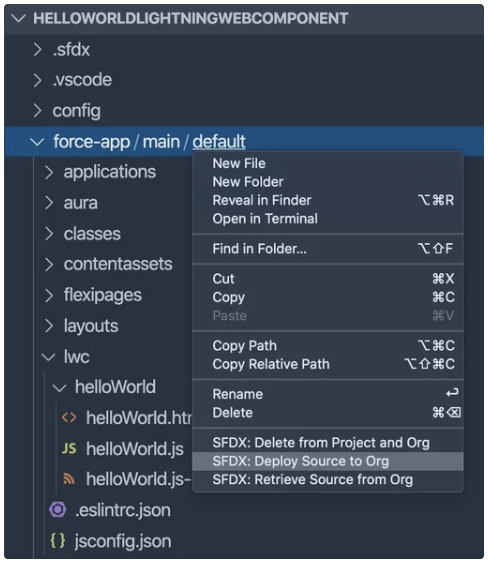
- Modify code and functionality as needed, then deploy your changes using VS Code extensions or the 'sf' terminal command.