Installation & Configuration
Dependencies
- Node.js >= 18.12.1
- pnpm (for package management)
- Zendesk CLI (latest version required to run your app in Zendesk)
Installation Guide
Set Up the Application
- Clone or Fork: Clone or fork the provided repository by Optave.
- Install Dependencies: Open your IDE's integrated terminal or a system command prompt and run:
pnpm install
Build the Application
- Create a Production Build:
pnpm build
What It Does: This command builds your React app and generates a dist folder containing all production-ready files.
Package the Application with Zendesk CLI
- Verify that zcli is installed by running:
zcli --version
- Package Command:
zcli apps:package dist
Result: This command packages your app from the dist folder and creates a zipped file inside a tmp folder.
Upload the Package to Zendesk
- Log in to your Zendesk account.
- Navigate to Admin Center.
- Navigate to Apps and Integrations > Zendesk Support Apps.
- In the top right corner, click Upload private app.
- Enter the app name.
- Choose the zipped file from the
tmpfolder. - Enter your
clientIdandclientSecretwhen prompted. - Complete the installation process.
Configuration
After installation, you'll need to configure the Optave Assistant for your Zendesk environment:
API Credentials Setup
-
Add the credentials provided by Optave:
clientIdclientSecretauthenticationUrlwebsocketUrl
-
These credentials will be used to authenticate your app with the Optave API services.
App Locations
The Optave Assistant can be configured to appear in various locations within Zendesk:
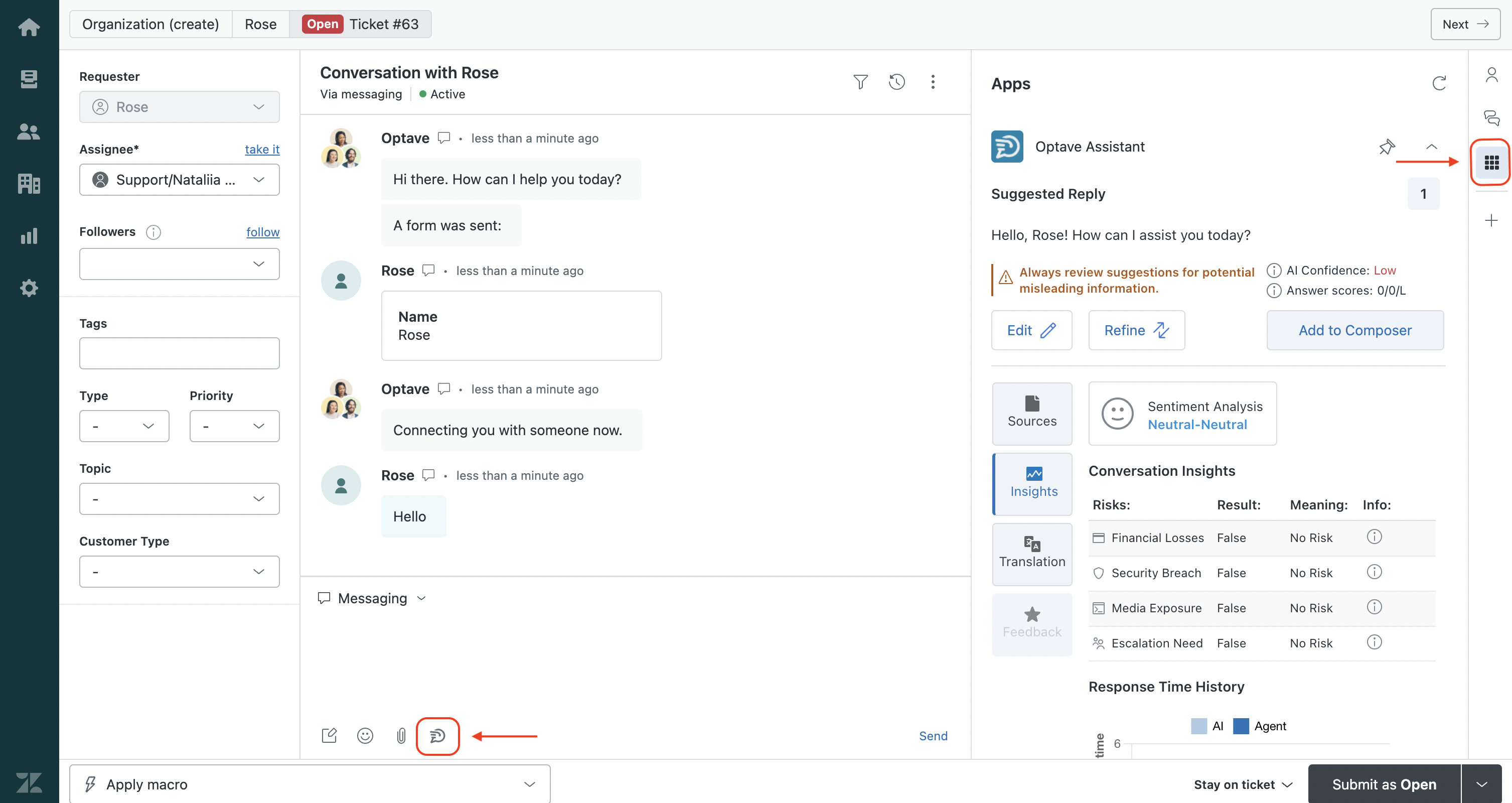
- Ticket Sidebar: This is the default location where the assistant provides real-time suggestions
- Ticket Editor: Contains AI settings for customizing assistant behavior
The app manifest (manifest.json) defines these locations and can be modified if needed.
Post-Installation Verification
To verify the installation was successful:
- Open a Ticket: Navigate to any ticket within Zendesk.
- Verify the Assistant:
- The Optave Assistant should automatically launch in the sidebar.
- If it does not, click the Apps icon in the ticket sidebar.
- Manually select Optave Assistant from the available list.
By activating this integration, you authorize us to send your data to an external service provider (Zendesk). You are solely responsible for confirming that the provider has appropriate security measures in place and for configuring and managing the integration. Optave does not control, nor is it responsible for, your use of these third-party services or your compliance with their terms. Please ensure you have the necessary permissions before enabling the integration.